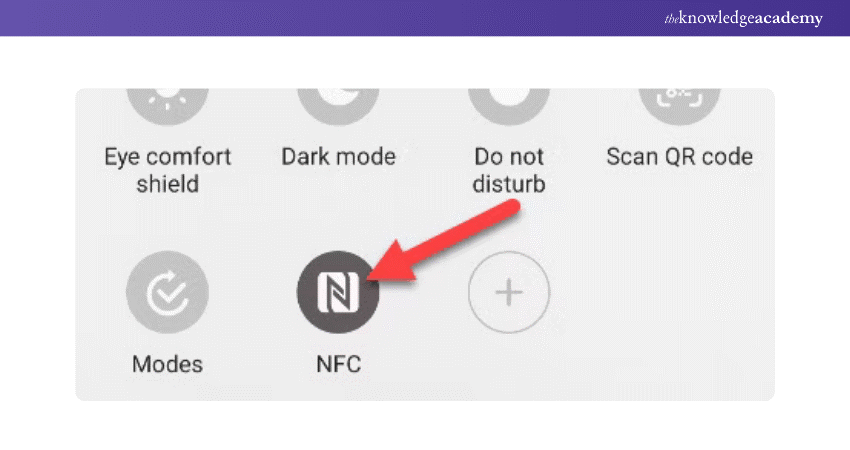
The Tap to Pay application will not work if the NFC function is not activated on your Android phone.
If your device is NFC-enabled, you may need first to activate the function as it may be inactive by default. Follow these steps to activate NFC on your device:
- Open the Settings app on your Android device.
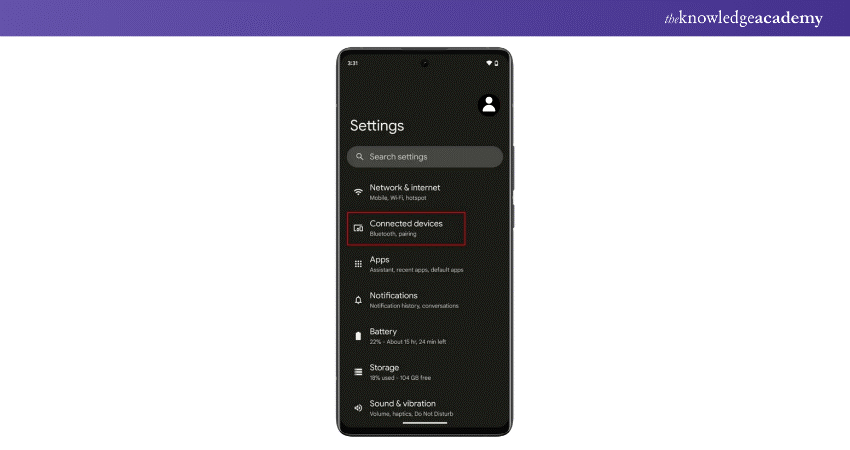
- In the Settings menu, scroll down to find the “Connections” or “Network and Internet” options, depending on your device's configuration. Tap on it to continue.
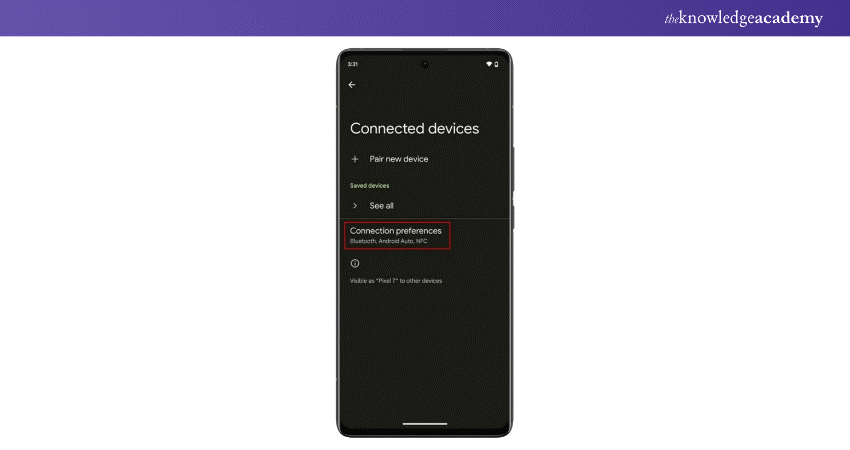
- In the Connections or Network and Internet menu, look for the “NFC” option. Tap on it to access the NFC settings.
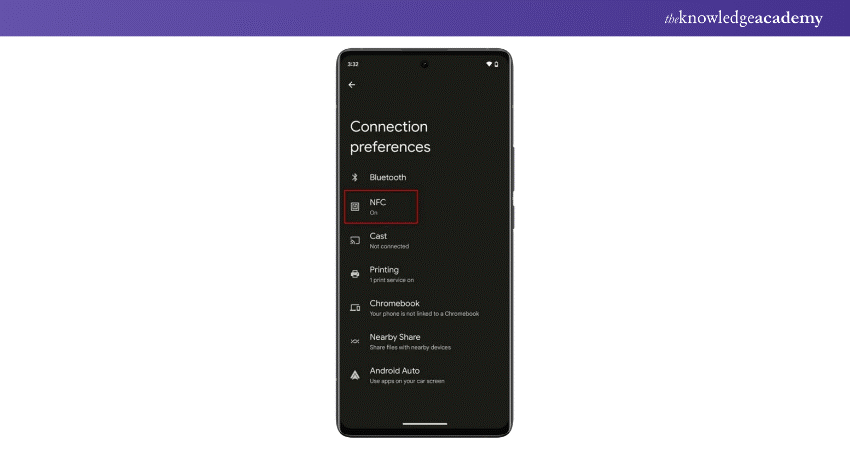
- In the NFC settings, press the toggle switch labelled “NFC” to activate it. It will change color or display “On” to confirm activation.
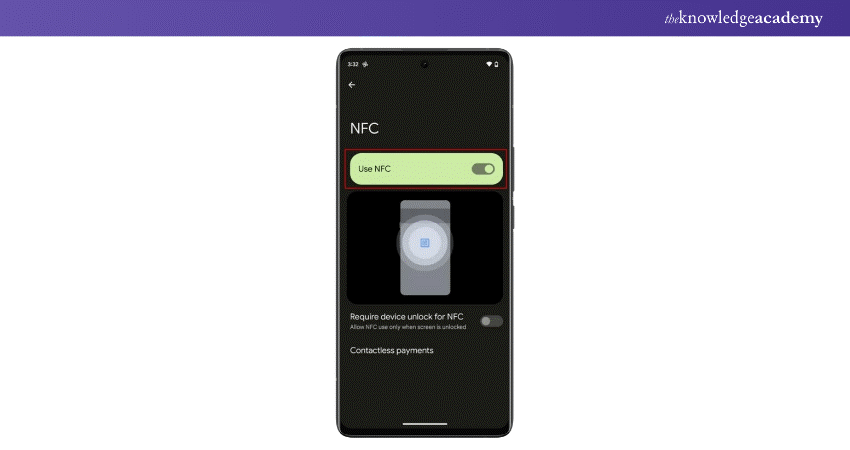
- After activating NFC, you may see a prompt to confirm the action. Tap on “OK” or “Confirm” to continue.
- To ensure that NFC has been activated, check for the NFC icon in the status bar at the top of your screen. You may also see a notification confirming that NFC is active.