Before activating your terminal physically, you need to manage it through SPRING and add it to your designated store. If you Market Pay acquiring services, you also need to make sure that the KYC process for the company has been completed. Once you confirm that terminal set up is complete in SPRING, we can perform activating our terminal.
Please follow the following article for managing terminals in SPRING: Payment Terminals: Terminal Management in SPRING
Activation process
Open "Pay On Site" application and click on "Activation".
Note. To access the application for the first time, you require an internet connection.
- The activation process is ongoing and can take a couple of minutes during first connection.
- Keys are being downloaded automatically (if required).
- When activation is completed, a pop-up appears with your store name and location. Confirm and you can start with your first payments.
Warning. If location does not match your store, contact customer support and don't use the terminal to process payments until told otherwise.
Troubleshooting failed activations:
Terminal activation failed (Unauthorized device XXXXXXXXXX (INTP))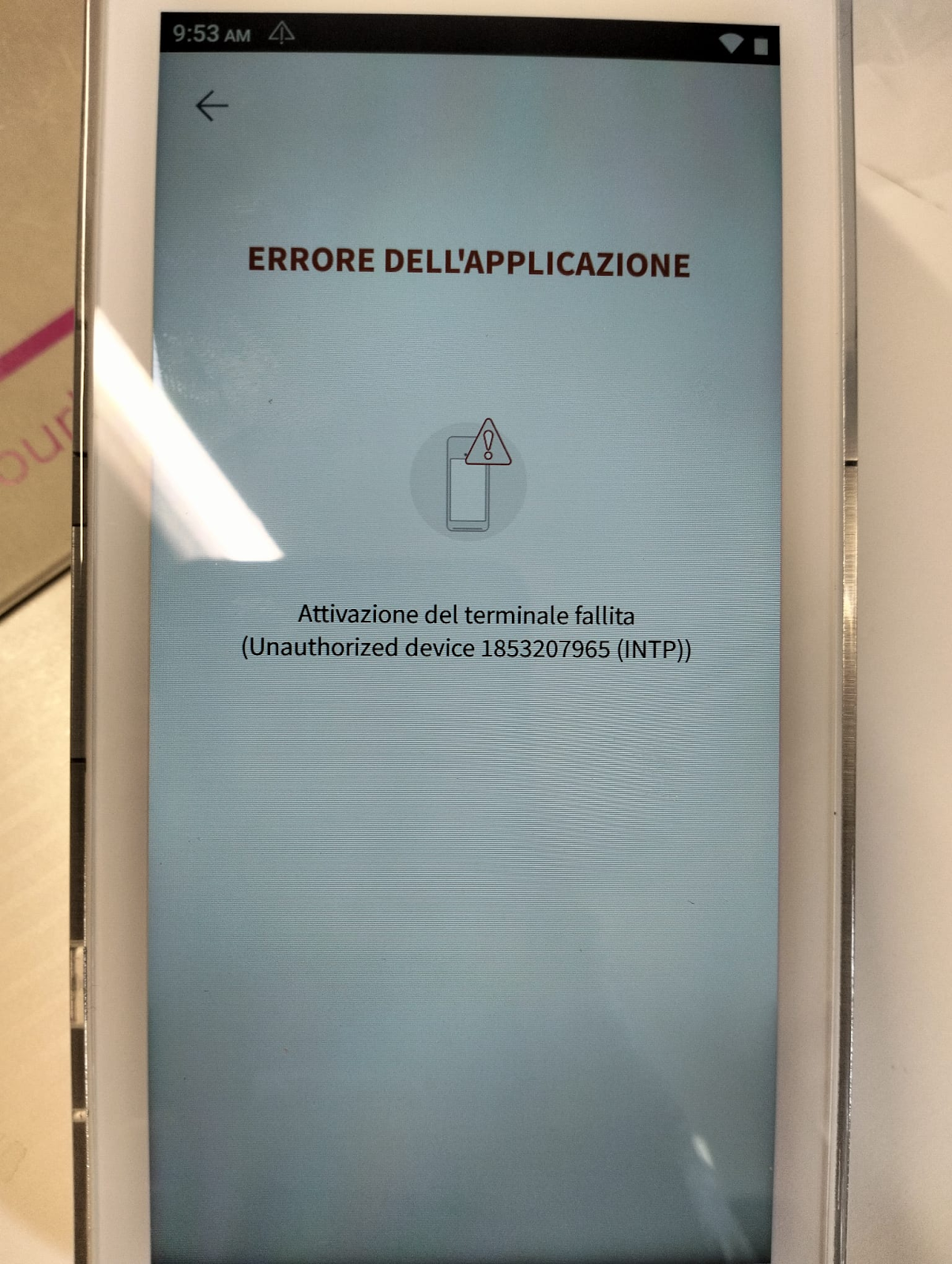
This happens when the terminal is not correctly registered in the terminal system, either because the serial number entered in SPRING has a typo or because the request in SPRING did not complete.
- Check the device serial number by check the serial number sticker on the back of the terminal, then confirm that it is matching the serial number entered inside SPRING Checkout Type -> Terminals
- If the serial number is matching between the device and SPRING, check if the First Creation OR Modification request was created after adding the terminal to SPRING.
- If the request was created, confirm the status of the request.
If the request is in error, please contact support.
If the request is OK, but the activation persists, contact support.
Error activating terminal (Handshake failed)
This can sometimes happen with A8500 terminals, due to a known PAYDROID version.
In this case, first, confirm the PAYDROID version on the terminal:
Open Settings: Tap the Settings icon (gear icon).
- Note: You may be prompted for a password. The default PAX settings password is often pax9876@@ or 9876.
Navigate to System: Scroll to the bottom and tap System or About Device.
Check Version: Look for Paydroid Version or Android Version. You may also see a Build Number, which indicates the specific firmware release date.
If the PAYDROID version is not 17.2.43, we suggest to update the PAYDROID version.
- Go to SPRING -> Target Company -> Target Store -> Checkout type for NVP
- Add App -> Search for PAYDROID -> Select PAYDROID version 17.2.43 -> Save
- Submit a new modification request.
- Once the modification request is complete, open the “Pay On Site” application and perform an update.
- If you are unable to reach the “Update” step, open the “NTMS Agent” application and perform an update from there.
- Once the terminal finishes updating, try to perform activation again.
Terminal activation failed (NTMS Agent doesn’t have enough permissions)
In rare cases, your device might sometimes run into the issue where our NTMS Agent application does not have enough device permissions to perform the activation call to our terminal system, in this case, follow these steps to grant these permissions:
1. Access Android Settings
From your terminal's home screen, tap the Settings app (sometimes called “System Settings” or displayed as a gear icon) The default password is: pax9876@@ or 9876.
If you don't see the Settings app, swipe up or tap the menu button to access the app drawer.
2. Go to App Manager
Scroll down and select Apps , Applications , or App Manager (the name may vary depending on your device).
3. Find the NTMS Agent app
Scroll through the list and tap NTMS Agent .
4. Open Permissions
Tap Permissions (or App Permissions ).
5. Grant all requested permissions
A list of permissions (such as Storage, Location, Phone, etc.) will appear.
Enable (Allow) all required or relevant permissions for NTMS Agent.
Tap each permission and select Allow .
6. Restart the NTMS Agent app
After granting permissions, close and reopen the NTMS Agent app.
If the error persists, restart the terminal .
Terminal activation failed (RKI download failed - 1416)
Your terminal (Serial Number) is not registered on the RKI server and the server declines it. Reach out customer support with a list of Serial Number(s) you would like to register.
During activation stage, application will check if encryption keys are loaded in the terminal (to encrypt securely transaction data); if Keys are missing, Application will trigger a call to Remote Key Injection (RKI) server.
Note. A fee is associated for each Key download using RKI technology..
If you encounter any other issue, not mentioned here, please reach out to our Customer Support.